

Project Description
[fullwidth background_color=”” background_image=”” background_parallax=”none” enable_mobile=”no” parallax_speed=”0.3″ background_repeat=”no-repeat” background_position=”left top” video_url=”” video_aspect_ratio=”16:9″ video_webm=”” video_mp4=”” video_ogv=”” video_preview_image=”” overlay_color=”” overlay_opacity=”0.5″ video_mute=”yes” video_loop=”yes” fade=”no” border_size=”0px” border_color=”” border_style=”solid” padding_top=”0″ padding_bottom=”20″ padding_left=”0″ padding_right=”0″ hundred_percent=”no” equal_height_columns=”no” hide_on_mobile=”no” menu_anchor=”” class=”” id=””][separator style_type=”none” top_margin=”-45″ bottom_margin=”” sep_color=”” border_size=”” icon=”” icon_circle=”” icon_circle_color=”” width=”” alignment=”center” class=”” id=””]
Approving Your Master Listing
Your Master Listing will allow you to manage all your business’ listings that you connect to Merchant Centric in one place. Your Master Listing, which is summarized on the Visibility page, is where you provide all your business information that you want to appear on top sites.

Merchant Centric will monitor your information on these sites. If there is ever a difference between your Master Listing and your business listing, the inconsistencies will be highlighted in yellow so you know what needs to be edited.
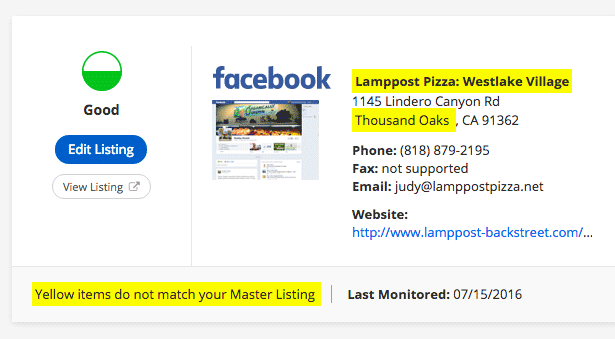
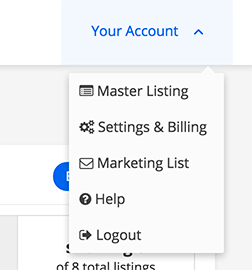
The first step is to review the information we have already collected about your business and included within your Master Listing. You can access your Master Listing a few ways, either from the My Account menu that is always accessible in the top right corner of the screen
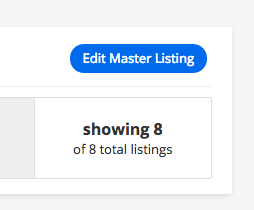
or on the Visibility page, using the Edit Listing button…

or Edit Master Listing button.
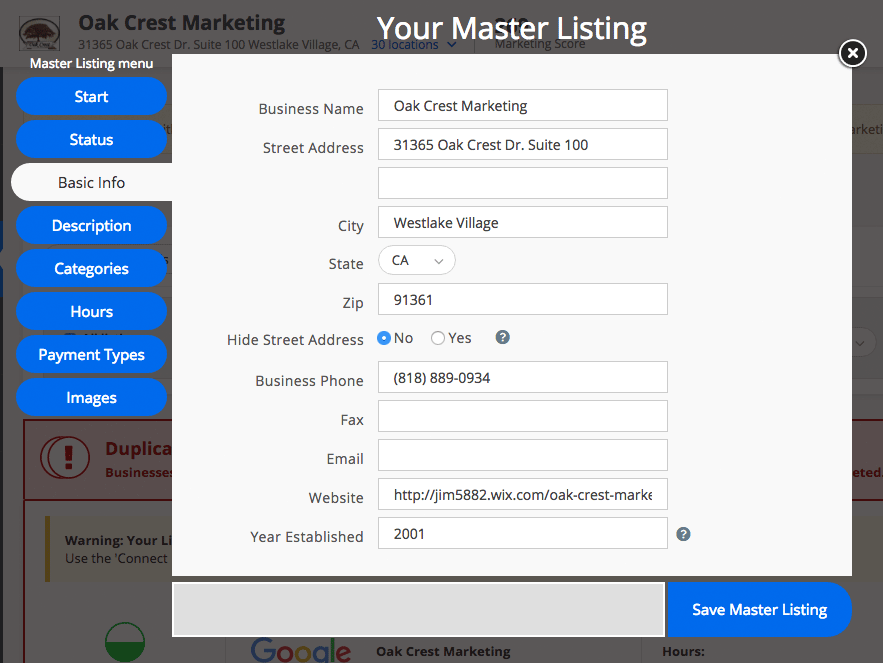
Once you have accessed your Master Listing, you will see the following menu items:
- Status
- Basic Info
- Description
- Categories
- Hours
- Payment Types
- Images

You can use the information already in place in each of these sections, add more information, change the information, or delete information. We will even suggest additional categories that we find your competitors using. Be sure to visit each section of your Master Listing to make sure your information is complete and accurate.
For example, Be sure your name, phone and address are complete and accurate in the Basic Info section. In regards to the address, if you are a service-area provider that deliver goods or services to your customers at their location, like a plumber, you can choose to hide your street address.
When you are satisfied with the changes to your Master Listing go to the Status section.

If there are any issues found, like missing required fields, you will be notified in the Master Listing info status section. To approve your Master Listing select the Yes radio button.
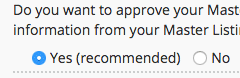
This will allow Merchant Centric to update connected business listings. If you have not yet connected any listings to Merchant Centric, Fix your Visibility on top sites by connecting your listings.
It’s important to your online visibility that all of your information is accurate and consistent. Instead of trying to remember all of your passwords and how to use each top site, you can simply use your Master Listing to edit all of your business listings in one shot. So anytime you want to make changes like updating your business hours or business description, you can do it all in one easy-to-use place, your Merchant Centric Master Listing!


