

Project Description
[fullwidth background_color=”” background_image=”” background_parallax=”none” enable_mobile=”no” parallax_speed=”0.3″ background_repeat=”no-repeat” background_position=”left top” video_url=”” video_aspect_ratio=”16:9″ video_webm=”” video_mp4=”” video_ogv=”” video_preview_image=”” overlay_color=”” overlay_opacity=”0.5″ video_mute=”yes” video_loop=”yes” fade=”no” border_size=”0px” border_color=”” border_style=”solid” padding_top=”0″ padding_bottom=”20″ padding_left=”0″ padding_right=”0″ hundred_percent=”no” equal_height_columns=”no” hide_on_mobile=”no” menu_anchor=”” class=”” id=””][separator style_type=”none” top_margin=”-45″ bottom_margin=”” sep_color=”” border_size=”” icon=”” icon_circle=”” icon_circle_color=”” width=”” alignment=”center” class=”” id=””]
Connecting Your Google Business Listing
Connecting your Google business listing to Merchant Centric allows you to manage the information presented about your business on Google and reply to Google reviews.
To Connect your Google listing to Merchant Centric there are two steps you must take: Claiming and Controlling.
- Claiming is a process that tells Google you are the owner of a business listing. You must claim your business listing on Google in order to make any changes to it or reply to reviews.
- Controlling is the process of entering your username and password to allow Merchant Centric to make updates to your business listing for you via your Master Listing. Once controlled, you can add and make changes, including: business name, contact information, business description, hours, as well as, reply to your reviews.
Note: A free Google account is required in order to claim your Google listing. If you do not have a Google account, you can create one for free at https://accounts.google.com/signup
Here is a quick guide on the claiming and controlling process that will connect your Google business listing to Merchant Centric.
Claiming
- On Google Maps, Search for your business, using your business name, city and state. Along the left side of the screen, you will see information about your business. Approximately half way down the left side of the screen, click the Claim this business link.
 If you do not see this link, your Google listing has been claimed and you will need to find the credentials used to claim the listing, or contact Google for assistance at https://support.google.com/business.
 - After agreeing to Google’s Terms of Service, Google is going to ask you how you want to verify that you are indeed the owner or authorized individual to connect your business listing. Google does this through two options, Call or Mail:

- Call: This is the fastest option. Simply select the Call button and Google will call the phone number included on your business listing and give you a PIN number. You will enter this PIN number on next screen of this claiming process.

- Mail: The alternative is to have a postcard mailed to your business, which may arrive within 1-2 weeks. You will then go back to your Google dashboard and enter the PIN number included on the postcard.

- Call: This is the fastest option. Simply select the Call button and Google will call the phone number included on your business listing and give you a PIN number. You will enter this PIN number on next screen of this claiming process.
- The Merchant Centric platform will identify your Google listing as claimed and you will be able to Connect your listing by taking the final step of controlling your Google listing.
Controlling
- Log into your Merchant Centric account and go to the Visibility page.
- Click on the Connect Listing button on your Google listing card.
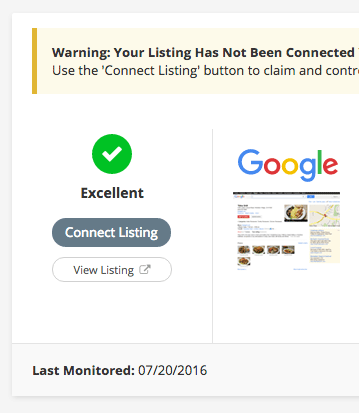
- Click on the control your listing button.
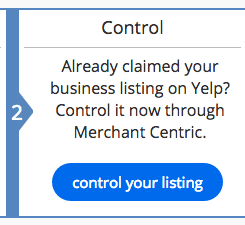
- Enter the email & password for your Google account and click the control listing button.

- Merchant Centric will complete a quick verification process to ensure that the correct email & password have been provided. Google may require additional verification, which will be presented to you within your Merchant Centric account. This may include verification of your recovery email, phone number, text code to your cell phone, or an onscreen CAPTCHA.
- Upon successful verification of your Google credentials, you will now see that your Google business listing is Connected within your Merchant Centric dashboard. You can make changes to your Master Listing and your changes will be made to your Google business listing, as well as all of your other Connected business listings within Merchant Centric. Listing updates may take up to 2 business days to be published.


